


INFOMIR MAG 256 Audio not Working
Category: Infomir MAG 256INFOMIR MAG 256 Audio not Working
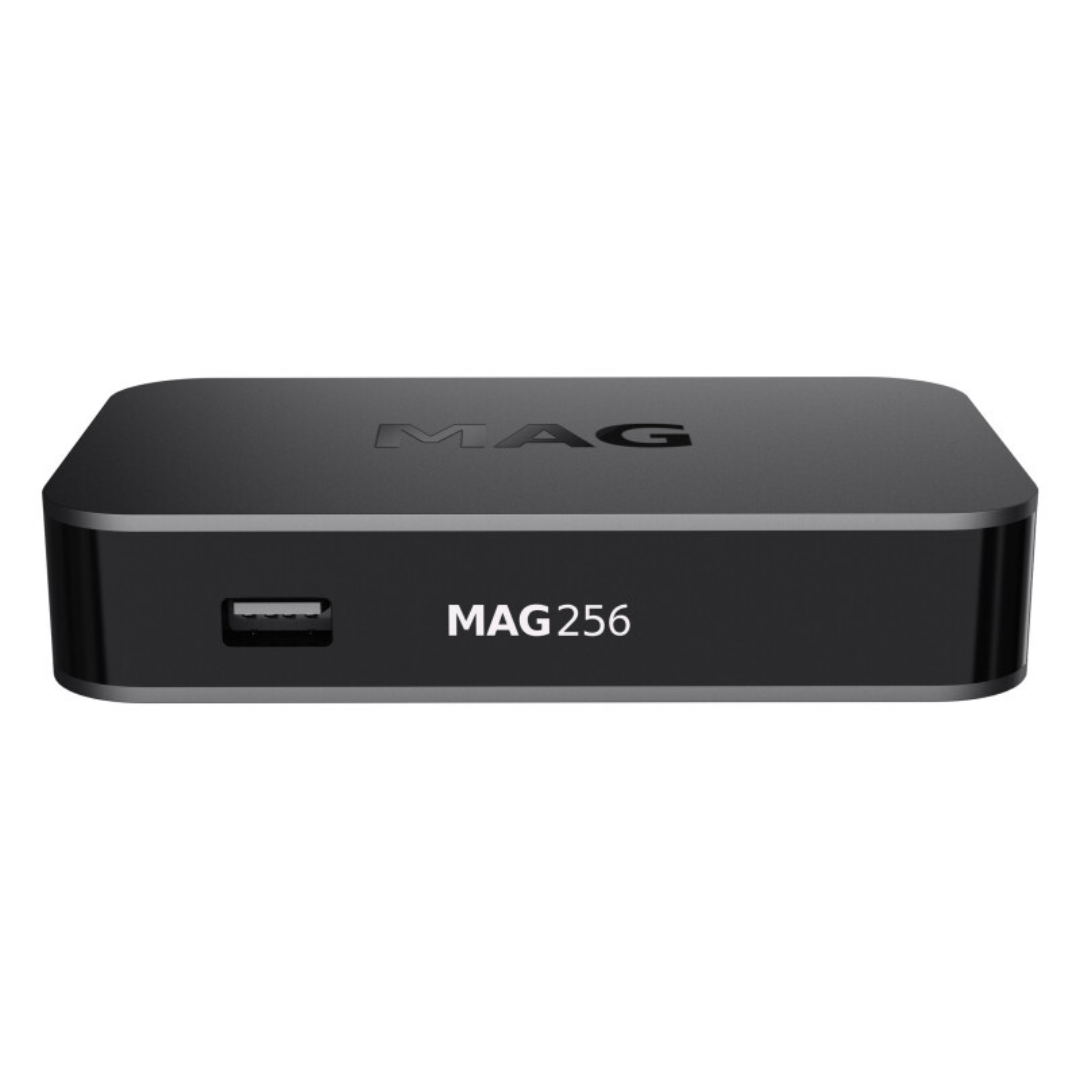
Estimated Reading Time: 4–5 min or click here to get instant help.
Quick and easy fixes for infomir mag 256 audio not working issue. Follow these simple steps to restore sound on your IPTV box.
Common Reasons
- Loose HDMI or AV cable can result in infomir mag 256 audio not working
- Audio settings might be incorrectly configured on the box or TV
- Software update or restart can fix most audio issues
Check HDMI or AV Connection
A common reason for infomir mag 256 audio not working is a loose or faulty HDMI or AV cable. This small connection problem can stop the sound from reaching your TV.
First, unplug the HDMI cable from both the TV and the MAG 256 box. Wait a few seconds and then plug it back in tightly. If your TV has more than one HDMI port, try using a different one. Make sure the cable isn’t damaged. If possible, test with a different HDMI cable.
If you are using AV cables (the red, yellow, and white ones), check if they are properly plugged into the correct ports. A wrong connection or damaged cable will result in no sound.
You should also make sure your TV is set to the correct input source. Sometimes, audio doesn’t play because the TV is on the wrong channel or port. Once you check all these connections, restart the box and see if the audio returns.
Adjust Audio Settings from Menu
Sometimes, the infomir mag 256 audio not working issue is due to a setting inside the box itself. You can change the sound settings from the main menu.
Use your remote to go to:
Settings → Audio → HDMI Audio → Auto or PCM
If it is already set to "Auto," try switching to "PCM" or vice versa. The setting depends on your TV or sound system. Some TVs don’t support certain audio formats. That’s why switching this can fix the problem.
Next, go to Settings → Audio → Audio Output Mode and set it to Stereo if it’s not already selected. Dolby or other modes may not work on all TVs.
After making these changes, reboot the box. It will apply the new settings and may solve the issue right away.
Enable Audio on External Devices
If you're using external speakers or a home theatre, make sure the audio is set to play through them. Go to your TV’s sound settings and check the audio output option. It should match your setup—either HDMI, optical, or AV.
Sometimes, the issue lies in the external device and not the MAG box. Try connecting your MAG 256 directly to the TV without any audio system. If the sound works fine, your external system may need checking or reconfiguration.
Update Software and Reboot
In some cases, infomir mag 256 audio not working can happen due to outdated software or a system bug. Software updates often fix bugs like these.
To update your MAG 256 firmware:
- Go to Settings → Software Auto Update → Update
- Make sure your box is connected to the internet. Once updated, reboot your device and test the audio. Updating the firmware may reset certain settings, so check your audio settings again after updating.
If you don’t see an update option, try rebooting the device manually. Simply unplug the power cable, wait 10 seconds, and plug it back in. Reboots often fix temporary glitches without needing further changes.
Test with a Different TV or Monitor
If your infomir mag 256 audio not working even after trying the above steps, the issue could be with your TV.
Take your MAG 256 box and connect it to a different TV. Use the same HDMI or AV cable and test if the audio works. If you hear sound on the second TV, your original TV may not support the audio format or has a speaker issue.
On the other hand, if there's still no sound on the second TV, the issue is more likely within the box itself. You can try a factory reset of the box, but only after backing up important settings or channels.
Need more Help
If you're still facing the same issue, don't worry. We’re here to assist you. You can reach out to us through WhatsApp, email, call, or live chat for further support.