


INFOMIR MAG 256 Set Top Box No Signal Problem
Category: Infomir MAG 256INFOMIR MAG 256 Set Top Box No Signal Problem
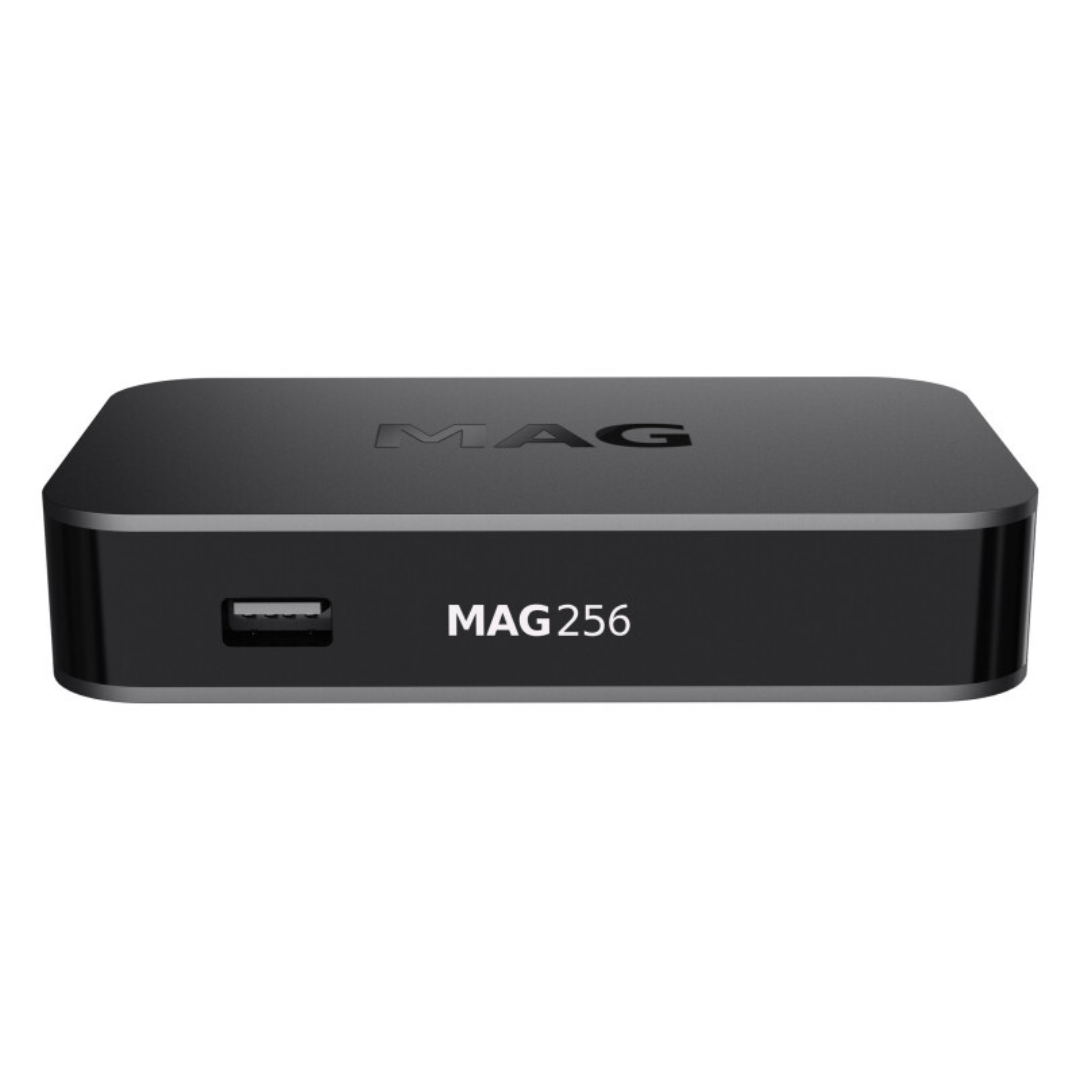
Estimated Reading Time: 4–5 min or click here to get instant help.
Facing infomir mag 256 no signal problem? This guide helps you fix it at home using simple and clear steps. Many IPTV users come across the frustrating infomir mag 256 no signal problem when turning on their box. It can happen suddenly, and your screen just stays black or shows a “No Signal” message. The device appears powered on, but nothing shows on the screen. This can be very confusing, especially if everything was working fine before.
Most of the time, this issue is related to basic connection problems like a faulty HDMI cable, wrong input source, or display resolution errors. It could also be due to a loose power connection or internal settings that need to be fixed.
If you’re facing this, don’t worry. You don’t need to be a tech expert to solve it. This article will walk you through easy steps to help fix the infomir mag 256 no signal problem right at home.
Disclaimer: These steps are based on the latest MAG 256 STB settings. If you don’t see these exact options, your box or TV model may differ. If that's the case, feel free to contact IPTVNotWorking for help.
Possible Causes
- A loose HDMI or power cable often causes the infomir mag 256 no signal problem
- Incorrect TV input source might stop the box from displaying
- The display resolution may not match your TV settings
Check Cable Connections and Input Source
The most common cause of the infomir mag 256 no signal problem is a loose or damaged cable. If your MAG 256 box is powered on but the screen is black or says "No Signal," first check all the cable connections.
- Start by unplugging the HDMI cable from both the MAG box and the TV.
- Inspect the cable for any visible damage. If you have another HDMI cable, try swapping it out.
- Plug it back in securely.
- Ensure the box's power adapter is connected tightly to the power source.
Next, check your TV’s input source. Use the TV remote and select the correct HDMI port where your MAG 256 box is connected. Sometimes, switching to the wrong input causes this display issue.
After confirming the correct input and reconnecting the cables, restart the box. You may now see the MAG logo or menu appear, resolving the infomir mag 256 no signal problem.
Reset Display Resolution to Match TV
Another possible reason for the infomir mag 256 no signal problem is an unsupported resolution setting. If your box was set to a resolution that your TV cannot handle, it will not show anything on the screen.
- Unplug the power cable of the MAG 256 box.
- Plug it back in and immediately press and hold the Menu button on the remote until the BIOS Settings screen appears. If it doesn’t work the first time, try again. Timing is important.
- In the BIOS menu, go to Video Output Mode and change it to a common resolution like 720p-60Hz or 1080p-60Hz, depending on your TV's capacity.
- Use the arrow keys to navigate and the OK button to confirm.
- Save the changes and reboot the box.
If the display resolution was the issue, your screen should now show the main menu, and the infomir mag 256 no signal problem will be gone.
Choosing the Right Video Output
When selecting the video output, it’s best to start with a lower resolution like 720p. This works on most TVs and helps confirm if the issue is due to compatibility. Once the screen is working, you can try increasing the resolution step-by-step to see what your TV supports.
Avoid selecting modes labeled "Auto" if you had issues before, as they may choose an unsupported setting. This can help prevent the infomir mag 256 no signal problem in the future.
Test on a Different TV or HDMI Port
If nothing has worked so far, your TV's HDMI port might be the issue. Or, there may be a display compatibility issue with that specific television. Testing the box on a different screen is a smart next step.
- Unplug your Infomir MAG 256 from the current TV.
- Take it to another room and connect it to a different TV using the same HDMI and power cables.
- Make sure to select the correct HDMI input on the second TV.
If the MAG box works fine on the other TV, your original TV's HDMI port may be damaged or incompatible with the box's resolution. You can also try different HDMI ports on the same TV if available.
If it still doesn’t work on the second screen, the issue might be internal, such as a software glitch or hardware failure. In that case, continue to the next step or reach out for professional help. This method is helpful in solving the infomir mag 256 no signal problem quickly.
Need More Help
If you’ve tried all the steps and your screen is still blank, don’t worry. We’re here to help. You can contact us anytime through WhatsApp, email, call, or live chat. Our friendly support team is ready to guide you with care.